
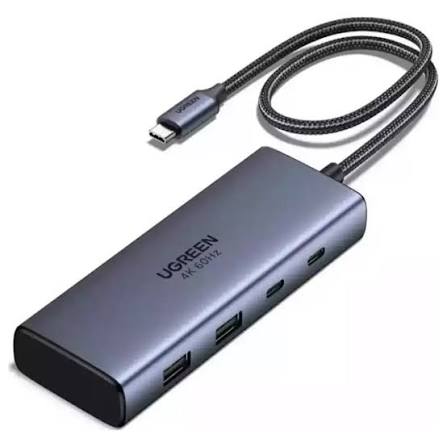
Modern laptops are becoming thinner, lighter, and more portable, but this convenient design often comes with fewer built-in ports. Many devices now include only a few USB-C connections, making it difficult to connect external monitors, keyboards, storage drives, memory cards, and other accessories simultaneously. A USB-C hub with USB C hub with 100W PD 100W Power Delivery (PD) can help solve this problem by expanding connectivity while supporting laptop charging through a single compact accessory.
However, not every USB-C hub offers the same performance, compatibility, or features. Some models focus on basic connectivity, while others include high-resolution display outputs, fast data transfer, Ethernet, and multiple charging options. Understanding these differences before purchasing can help you select a hub that matches your devices and daily requirements.
Understanding a USB-C Hub with 100W PD
A USB-C hub is a compact accessory that connects to a computer through a USB-C port and provides additional connections for peripherals. Depending on the model, these connections may include USB-A, HDMI, Ethernet, SD card readers, audio ports, and additional USB-C interfaces.
Power Delivery is a charging technology that allows compatible devices and chargers to negotiate an appropriate power level. A hub advertised as supporting 100W PD may allow a compatible laptop to receive power through its USB-C connection while other ports remain available for accessories.
This arrangement is particularly useful for students, office workers, remote professionals, and travelers who want to reduce cable clutter. Instead of disconnecting several accessories whenever they move their laptop, users can connect most of their equipment through one hub.
It is important to understand that a 100W PD rating does not always mean the laptop receives the full 100 watts. The hub may reserve some power for its own operation, and the connected charger, cable, and laptop must also support the required charging standard.
1. Check the Power Delivery Capacity
Power delivery should be one of the first features to examine when comparing USB-C hubs. A 100W PD rating can be useful for laptops that require substantial charging power, but the actual charging performance depends on the entire setup.
Before buying, check your laptop manufacturer’s recommended charger wattage. A device designed for a 45W charger may work comfortably with a suitable lower-power arrangement, while a laptop requiring 90W or more may need a hub and charger capable of delivering sufficient power.
Understand the Difference Between Input and Output
Product descriptions sometimes advertise 100W PD input, which refers to the power entering the hub from a compatible charger. The power available to the laptop may be lower because the hub uses some electricity to operate its internal components.
For example, a hub receiving 100W might deliver less than 100W to the connected computer. The precise amount depends on the manufacturer’s design and specifications.
Look for clearly documented laptop charging output rather than relying exclusively on the largest number displayed in a product listing.
Check Charger and Cable Compatibility
A compatible USB-C charger and appropriately rated cable are also necessary. If either component cannot support the required power level, the complete setup may not deliver its advertised charging performance.
2. Choose the Right Selection of Ports
The primary purpose of a USB-C hub is to expand connectivity, so the available ports should match your everyday equipment.
A useful hub might include several USB-A ports for traditional accessories, an HDMI output for an external display, a USB-C data port, an SD card reader, and an Ethernet connection.
USB-A Ports for Everyday Accessories
Many keyboards, mice, printers, flash drives, and other peripherals still use USB-A. Having multiple USB-A connections can reduce the need for additional adapters and make a workspace easier to organize.
Check the number of ports and their supported transfer speeds. Two visually similar USB-A connections may offer different performance depending on the hub’s specifications.
HDMI for External Displays
An HDMI port allows users to connect a compatible external monitor, television, or projector. This can be helpful when working with spreadsheets, editing documents, attending presentations, or managing several applications simultaneously.
Before purchasing, verify the supported resolution and refresh rate. A hub supporting 4K at 30Hz provides a different experience from one supporting 4K at 60Hz. The computer’s graphics capabilities, USB-C port, cable, and display must also support the intended configuration.
Ethernet for Stable Networking
Some hubs include an Ethernet port for wired internet access. This can be useful in offices, classrooms, hotels, and home workspaces where a wired connection is available.
Users who frequently transfer large files, participate in video meetings, or work with network storage may appreciate this feature.
3. Examine Data Transfer Speeds
Data transfer performance becomes especially important for people who regularly move large files between computers and external storage devices.
USB-C describes the connector shape rather than guaranteeing a particular transfer speed. A USB-C port might support USB 2.0, USB 3.x, USB4, or another compatible standard, depending on the device and hub.
For everyday documents and small files, moderate transfer speeds may be sufficient. Photographers, video editors, and other users working with large media files may benefit from faster interfaces.
Look Beyond Port Appearance
Do not assume that every port on a hub offers identical performance. Manufacturers may include a mixture of charging-only, data-transfer, and display-capable connections.
Review the specifications to identify the supported data standard and any speed limitations. Also remember that the connected computer, cable, and storage device can limit actual performance.
If you regularly connect external solid-state drives, choosing a hub with clearly specified high-speed data ports can improve convenience and reduce waiting times.
4. Verify Display Resolution and Multi-Monitor Support
External display support can be an important consideration for professionals and students who need additional workspace.
Some USB-C hubs support one external monitor, while others advertise connections for two or more displays. However, the number of physical display ports does not automatically determine how many independent screens a computer can operate.
The result depends on the laptop’s graphics hardware, USB-C capabilities, operating system, and the display technology used by the hub.
Consider Resolution and Refresh Rate
A monitor’s resolution determines how much visual detail it can display, while its refresh rate affects how frequently the image updates.
For general office tasks, a suitable 1080p display may be sufficient. Users with high-resolution monitors should check whether the hub supports their preferred resolution and refresh rate.
Mac and Windows computers may also differ in their support for multiple external displays. Confirm compatibility with your specific model before choosing a hub designed for multi-monitor setups.
5. Prioritize Build Quality and Heat Management
A USB-C hub is often carried in a backpack or connected to a laptop throughout the working day. Its construction can therefore influence its long-term reliability.
Look for a sturdy housing, well-fitted connectors, a durable cable, and a design that feels appropriate for regular use. Metal housings are common because they can help dissipate heat, although the material alone does not guarantee better performance.
Why Heat Management Matters
Power delivery, data transfers, and display output can place demands on a compact hub. Some warmth during normal operation is expected, especially when several ports are active.
A well-designed model should manage heat appropriately under its intended operating conditions. Read product documentation and credible customer feedback to identify recurring concerns about overheating, unstable connections, or reduced performance during extended use.
Avoid selecting a product solely because it looks attractive. Reliable construction and clear technical specifications are more important for daily use.
6. Confirm Compatibility with Your Devices
Compatibility is one of the most important considerations when choosing a USB-C hub. Although the connector is widely used, not every USB-C port supports every available feature.
For example, a laptop’s USB-C port may support charging and data transfer but lack video output. Connecting an HDMI-equipped hub to that port will not necessarily produce an image on an external monitor.
Check Your Laptop’s USB-C Capabilities
Consult the manufacturer’s specifications to determine whether the port supports USB Power Delivery, DisplayPort Alt Mode, USB4, Thunderbolt, or other relevant technologies.
Also verify compatibility with your operating system and any specialized peripherals you plan to use.
If you intend to connect a tablet, smartphone, or handheld computer, confirm that the device supports the hub’s required functions. Some mobile devices have more limited external display or peripheral support than laptops.
7. Consider Portability and Cable Design
The best hub is not necessarily the one with the most connections. It is the one that provides the right balance between functionality and convenience.
A compact hub with a few essential ports may be ideal for travel, university, or working in different locations. A larger model with Ethernet, multiple display outputs, and additional USB connections may be more appropriate for a permanent desk setup.
Choose a Practical Design
Consider the hub’s dimensions, weight, cable length, and connector placement. A short integrated cable may reduce clutter, but it should reach your laptop’s port comfortably without placing unnecessary pressure on the connector.
Port placement also matters. Connections arranged sensibly can make it easier to attach storage devices and display cables without blocking neighboring ports.
8. Review Safety Features and Product Reliability
Power accessories should be selected with care. Look for reputable manufacturers that publish clear specifications and provide suitable product documentation.
Depending on the design, useful electrical protections may include overcurrent, overvoltage, short-circuit, and temperature protection. Check the manufacturer’s documentation to confirm which protections are actually included rather than assuming every hub offers the same safeguards.
A dependable warranty and responsive customer support can also provide additional reassurance. Read customer reviews critically, paying attention to repeated reports about connection stability, charging consistency, and compatibility.
When purchasing a USB-C hub, use a suitable charger and cable from a reliable source. Avoid products with unclear power ratings or specifications that appear inconsistent.
9. Compare Price with Practical Value
USB-C hubs are available across a wide range of prices. The most expensive option is not automatically the best, and a cheaper model may be perfectly adequate for basic tasks.
Start by listing the features you genuinely need. Someone who mainly connects a mouse, keyboard, and flash drive may not need an advanced hub with multiple display outputs and high-speed networking.
By contrast, a professional using an external monitor, fast storage, wired internet, and a power-hungry laptop may benefit from investing in a more capable model.
Compare the number of usable ports, charging output, display specifications, data speeds, warranty, and compatibility before making a decision.
10. Read the Specifications Before Buying
Product listings can use similar language while describing different capabilities. Taking a few minutes to review the technical details can prevent disappointment.
Use the following checklist when comparing options:
- Power Delivery: Confirm the maximum input and actual laptop charging output.
- Port selection: Make sure the hub includes all the connections you need.
- Data speeds: Verify the supported USB standards for important ports.
- Display support: Check resolution, refresh rate, and the number of independent displays.
- Compatibility: Confirm support for your laptop and operating system.
- Construction: Look for durable materials and a practical cable design.
- Safety: Review documented electrical protections.
- Warranty: Check the manufacturer’s support and return policies.
A hub that meets your essential requirements is generally a better choice than one that offers many impressive features you will rarely use.
Conclusion
A USB-C hub with 100W PD can make a laptop more versatile by combining charging, display connectivity, data transfer, and peripheral support in one compact accessory. However, choosing the right model requires more than checking the advertised wattage.
Pay close attention to actual charging output, port selection, data transfer speeds, display capabilities, build quality, and compatibility with your devices. These factors determine how effectively the hub will fit into your daily routine.
Before buying, identify your most frequently used accessories and check your laptop’s technical specifications. Compare products based on practical performance rather than marketing claims alone. With careful research, you can choose a USB-C hub that supports a cleaner workspace, convenient connectivity, and dependable everyday use.